Showing posts sorted by relevance for query SQL Anywhere. Sort by date Show all posts

Thursday, August 15, 2013

Looking at SQL Anywhere after a long break

In fact after having been acquired by SAP, I have not looked at this Sybase product. Here are the links to my previous SQL Anywhere articles. Looks like SQL Anywhere 10 was the last version I looked at. Here is a list of articles I wrote on the older versions. It is possible some links are broken. I wrote few more articles during that time, I will have to search for them.

Deploymentof the MobiLink Synchronization Model Wizard in SQL Anywhere 10

MobiLink Synchronization Wizard in SQL Anywhere 10

Using Data Access Pages to Access Data on a SQL Anywhere 10 Database

Introducing Jasper (SQL Anywhere 10 Beta)

Migrating from Oracle 10G XE to SQL Anywhere 10

How to Access a SQL Anywhere Database with ColdFusion

Migrating an MS Access Database to SQL Anywhere with Migration Wizard

Using SQL Anywhere Database With a Web Services Server

Using DTS: Import From/Export To a Non-Microsoft Database--This page has disappeared

Creating Database Projects with SQL Anywhere Studio, Part 2

Creating Database Projects with SQL Anywhere Studio, Part 1

This is Sybase Central 10.


Sybase Central is like SQL Server's Management Studio, an interface where you can do most things. There was no Cloud Services when SQL Anywhere 10 was released but now with SQL Anywhere 16 you can connect to Cloud servers as well.


This is the Sybase Central 16 here:


SQL Anywhere 16 is the latest version, You can download from here:


To install SQL Anywhere 16 run the Setup.exe (805 KB) from the download location. The following programs /Items will be added to Start | All Programs as shown.


It has most programs for both x36 and x64 versions. 

RelayServer 16 is the new addition to the 10 version. This is where you should start your exploration. Use the sample database  with the ODBC connection created during installation
 
Mahalo

Saturday, December 03, 2016

Review my recent SQL Anywhere 17 posts on HodentekMSSS

There are a number of SQL Anywhere 17 posts on my HodentekMSSS blog related to using Power BI. Perhaps you may want to read.

   
SQL Anywhere 17 Reports using Power BI                                                                     12/1/2016
http://hodentekmsss.blogspot.com/2016/12/sql-anywhere-17-reports-using-power-bi.html

Retrieve data from SQL Anywhere 17 in JSON format                                                    11/28/2016
http://hodentekmsss.blogspot.com/2016/11/retrieve-data-from-sql-anywhere-17-in.html
   
Problem connecting to SQL Anywhere 17 to Power BI using OLE DB                           11/23/2016
http://hodentekmsss.blogspot.com/2016/11/problem-connecting-to-sql-anywhere-17.html

Problem connecting to SQL Anywhere 17 to Power BI using OLE DB - the workaround 11/24/2016
http://hodentekmsss.blogspot.com/2016/11/problem-connecting-to-sql-anywhere-17_24.html
   
Trick to querying a SAP SQL Anywhere Server database with R                                      9/5/2016
http://hodentekmsss.blogspot.com/2016/09/trick-to-querying-sap-sql-anywhere.html

Monday, December 16, 2013

Data from SQL Anywhere 16 using Microsoft Query

Aloha,

In a number of previous posts we have seen how to access data on SQL Anywhere 16 using either ODBC with OpenOffice or ADO.NET connectivity. Follow the links here:
http://hodentek.blogspot.com/2013/10/connecting-to-sql-anywhere-16-using.html
http://hodentek.blogspot.com/2013/09/do-you-need-to-connect-to-sql-anywhere_24.html
http://hodentek.blogspot.com/2013/09/do-you-need-to-connect-to-sql-anywhere_20.html
http://hodentek.blogspot.com/2013/09/do-you-need-to-connect-to-sql-anywhere.html
http://hodentek.blogspot.com/2013/08/do-you-need-to-connect-to-sql-anywhere.html

Connecting to SQL Anywhere 16 from MS Excel has some obvious advantages and the first thing that comes to mind is to crunch numbers and using other powerful tools of Excel such as graphing and Power Pivot.

Microsoft's Microsoft Query offers the easiest route to getting data out of SQL Anywhere 16. This posts shows how you can do it.

Microsoft Query requires an ODBC connection. When you install SQL Anywhere 16  Developer's edition, a ODBC DSN is added to the ODBC Manager screen.

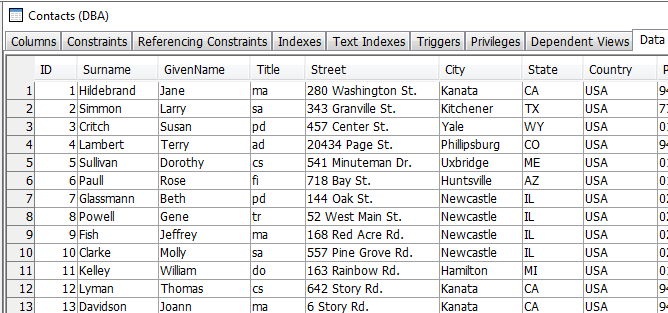
The data comes into MS EXCEL very fast and very easily as shown. The image below shows all the columns (unfiltered, un sorted) from the Contacts table in the demo application that accompanies the SQL Anywhere 16 download.


The detailed steps are available here:

http://hodentekhelp.blogspot.com/2013/12/can-you-get-data-from-sql-anywhere-16.html

Mahalo

Sunday, September 04, 2016

SAP SQL Anywhere 17 on Windows 10

SAP SQL Anywhere 17 was announced in June 2015. It is a nice database and I always liked it, because it just works! I have written a number of articles on the earlier versions and of course I wanted to try this latest version.

This version comes with a lot of enhancements. I recommend this site where you can read lot more and focus on installing it on a Windows 10 machine.

Here is an excerpt from that site on developer related features of Version 17:

Developer Enhancements
  • OData Enhancements - The SQL Anywhere database server can act as an OData server.  This functionality replaces the OData Server utility.  In addition, the The OData producer now supports a greater subset of the OData Service Definition Language (OSDL). 
  • JavaScript external environment - SQL Anywhere now includes support for JavaScript stored procedures and functions.
  • Node.JS and Python drivers - The SQL Anywhere Node.js driver allows users to connect and perform queries on the database using JavaScript on Joyent’s Node.js Software platform.   In addition, the three SQL Anywhere python drivers are now available through PyPI, the official Python package index.
  • Consolidated db – MobiLink has support for SAP ( ASE, IQ, SQLA), Oracle, Microsoft, IBM, MySQL back-end databases.  We continue to add support for newer versions of these databases.  In v17, we added support for Oracle 12.1, ASE 16, SS 2014,MySQL 5.6.20, IBM DB2 10.5. 
  • HANA Integration – with our SAP HANA Remote Data Sync product, MobiLink becomes more tightly integrated into the HANA platform infrastructure (assigned port numbers, lifecycle management, name server integration, license management, monitoring integration).
  • SAP Passport support and NCSLib logging

You need to download the installation file from here after registering here:

https://go.sap.com/cmp/syb/crm-xu15-int-sqldevft/index.html

You can download both SAP SQL Anywhere 16 which requires a key that you get after registering or SAP SQL Anywhere 17 which does not require a key. The product you get is a developer edition good for developing on your machine and not for production.

If you do not know about SAP SQL Anywhere may be this is a good place to start:


It is available for Linux as well as Windows. I downloaded the Windows version (x64 bit).
As the ad says, it just Works.

After installation you should be seeing these on your Windows 10 computer.


There are a number of built-in tools that you can use.


Get dozens of tutorial articles on Sybase/SAP SQL Anywhere from here.

It has a nice management interface called Sybase Central shown here:


Tuesday, August 12, 2008

Visual Studio 2008 and SQL Anywhere 11 Integration

On Installing the SQL Anywhere 11
Visual Studio 2008 Integration
Breaking news!!

On Installing the SQL Anywhere 11

Register as a developer and get Panorama_windows_Beta (263 MB) from Sybase web site.

This one is pretty easy to install. I am sure the release edition will be as easy. Double click the downloaded file to kick off the installer. You see the Welcome Screen.


Click Next and get to see the License (Better read it). It looks like this is software has international exposure and widely used.
Accept the license and click Next. Verify Server licensing information and click Next.


Check out how much resource you have and accept the complete. Click Next.


Click on Install on Ready to Install Screen.
Installing SQL Anywhere 11 Progress screen shows up.
Hang around for a while till the process gets completed.
You are done!!


Nothing can be easier than this.
Now the fun begins. Go to Start |All Programs |SQL Anywhere 11 and you can see all the goodies you got.


Visual Studio 2008 Integration Features
If you have Microsoft Visual Studio Installed you can open and verify that hooks to integrate VS with SQL Anywhere is ready to go. You can get to Sybase Central (Management interface for the SQL Anywhere products you downloaded) as well as Interactive SQL where you can test your SQL skills. You need authentication which is Username: dba and Password: sql


You can also Browse using the SQL Anywhere Explorer from within VS 2005 (also VS2008).


If you are used to ODBC and adept at it go ahead and open the ODBC Manager and verify you have the correct driver.


You can learn a number of things about this database products following articles at this link:
Happy learning!

Breaking news!!
PS: As of this writing you can download a Developer's edition by registering at the Sybase site.

Saturday, September 17, 2016

Query SAP SQL Anywhere 17 using R

As previously posted you should have the RODBC package in your library. Once you have this it is very easy.

You also need to have an instance of SAP SQL Anywhere  or access to it on/from your computer. An installation of SAP SQL Anywhere 17 (latest developer version) also installs DSN's for accessing the sample database using ODBC.

 Since you will be querying from R, you have R installed on your computer.

Some relevant references to the above can be found here:
------------------------------------------------------
[Windows 10 ODBC : http://hodentekmsss.blogspot.com/2015/08/windows-10-odbc-data-base-adminsitrators.html
 SQL Server 2012 ODBC DSN: http://hodentekmsss.blogspot.com/2013/08/how-do-you-create-odbc-dsn-to-sql.html
SQL Server 2012 Installation: http://hodentekmsss.blogspot.com/2014/07/sql-server-2012-developer-edition-is.html 
Installing R: http://hodentekhelp.blogspot.com/2015/09/can-you-install-r-version-322.html ]--------------------------------------------------------
You bring the necessary libraries with these statements in R Gui (x64bit):
> library(RODBC)
> ch <-odbcConnect("SQL Anywhere 17 Demo")
SQL Anywhere 17 Demo is a demonstration sample database. After installing SQL Anywhere you can find it in the ODBC Database DataSources window.

After defining the channel as shown above, when you run the above you will be presented with this screen.
The database name is 'demo' and type over the password field with the password 'sql'. Click OK and you get a prompt in RGUI.

Now you can query the database as shown here Only 6 six out of 60 shown):
> sqlQuery(ch, "Select * from Contacts")

   ID    Surname          GivenName    Title          Street                                City               State
1   1     Hildebrand      Jane                ma             280 Washington St.          Kanata         CA
2   2     Simmon          Larry              sa               343 Granville St.              Kitchener     TX
3   3     Critch              Susan             pd              457 Center St.                   Yale             WY
4   4     Lambert          Terry              ad               20434 Page St.                 Phillipsburg  CO
5   5    Sullivan           Dorothy          cs               541 Minuteman Dr.          Uxbridge      ME
6   6      Paull              Rose               fi                718 Bay St.                       Huntsville     AZ

However, a SELECT query such as the one shown below spawns an error. 


> sqlQuery(ch,"Select Surname, City, Country from Contacts where state='CA'")
Error in .Call(C_RODBCFetchRows, attr(channel, "handle_ptr"), max, buffsize,  :
  negative length vectors are not allowed

In fact any WHERE clause produces this error.

The trick is to start the connection as shown here,

 >chs <-odbcConnect("SQL Anywhere 17 Demo", believeNRows=FALSE)

Now if you run the query you will not get an error.

> sqlQuery(chs, "Select Surname, City, Country from Contacts where state='CA'")
 
       Surname        City        Country
1     Hildebrand    Kanata     USA
2     Lyman           Kanata     USA
3     Davidson       Kanata     USA
4     Pettengill       Kanata     USA
5     Romeo           Sheffield  USA

I am indebted to an answer to this error at stack overflow site:
http://stackoverflow.com/questions/3407015/querying-oracle-db-from-revolution-r-using-rodbc

and

a question here:
http://sqlanywhere-forum.sap.com/questions/25826/querying-sql-anywhere-using-rodbc

Tuesday, September 24, 2013

Do You Need to Connect to SQL Anywhere 16 from OpenOffice 4.0? - Part 4

Accessing SQL Anywhere 16 from OpenOffice 4.0 using an ADO connection allows us to view objects and their contents. The details are described in this post..

When SQL Anywhere 16 is accessed by OpenOffice 4.0 using an ODBC connection, the problem of viewing table contents is not yet settled as described in the previous two posts here:
http://hodentek.blogspot.com/2013/08/do-you-need-to-connect-to-sql-anywhere.html
http://hodentek.blogspot.com/2013/09/do-you-need-to-connect-to-sql-anywhere.html

However, a work around was found and was described in this post:
http://hodentek.blogspot.com/2013/09/do-you-need-to-connect-to-sql-anywhere_20.html

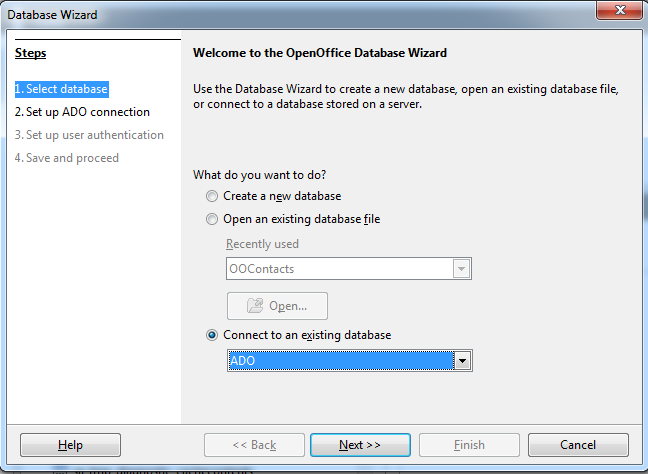
From earlier posts we have seen that OpenOffice 4.0 provides couple of different options to access data.  We start as in earlier posts by launching OpenOffice 4.0 as shown here. It is assumed that the SQL Anywhere 4.0 sample database 16.0 has started and that you can connect to the database from Sybase Central 16.0


We have chosen to connect to SQL Anywhere using the ADO connection as shown above.


In Step 2 we need to set up the ADO connection for which we need to provide an URL.  I have used demo as the URL (not strictly follows the definition of an URL, which is, Internet address: an address identifying the location of a file on the Internet, consisting of the protocol, the computer on which the file is located, and the file's location on that computer).

This was a guess on my part looking at the Personal Server shown here:


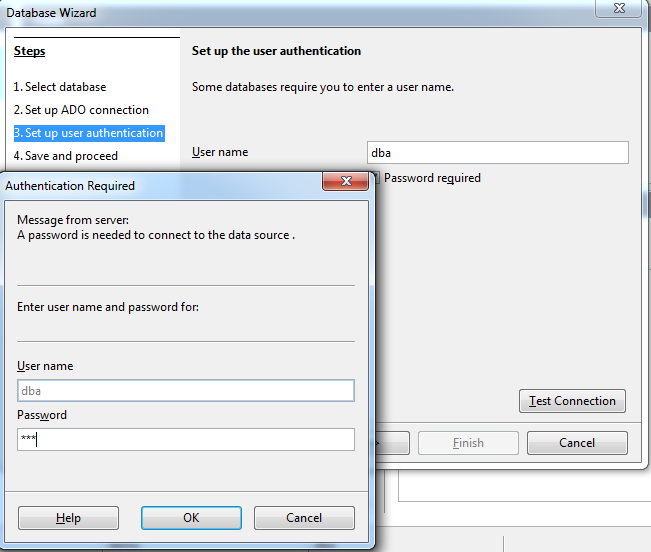
Clicking Next on the OpenOffice 4.0 Database Wizard screen brings up the following wherein User authentication must be set up:

 
We use the same credentials (dba / sql) and click Test Connection.
 

After entering the Password (sql) click OK.


You get a confirmation from OpenOffice Base as shown above.
Click OK.

We have come to Step 4. Accept the defaults as above and click Finish.

 
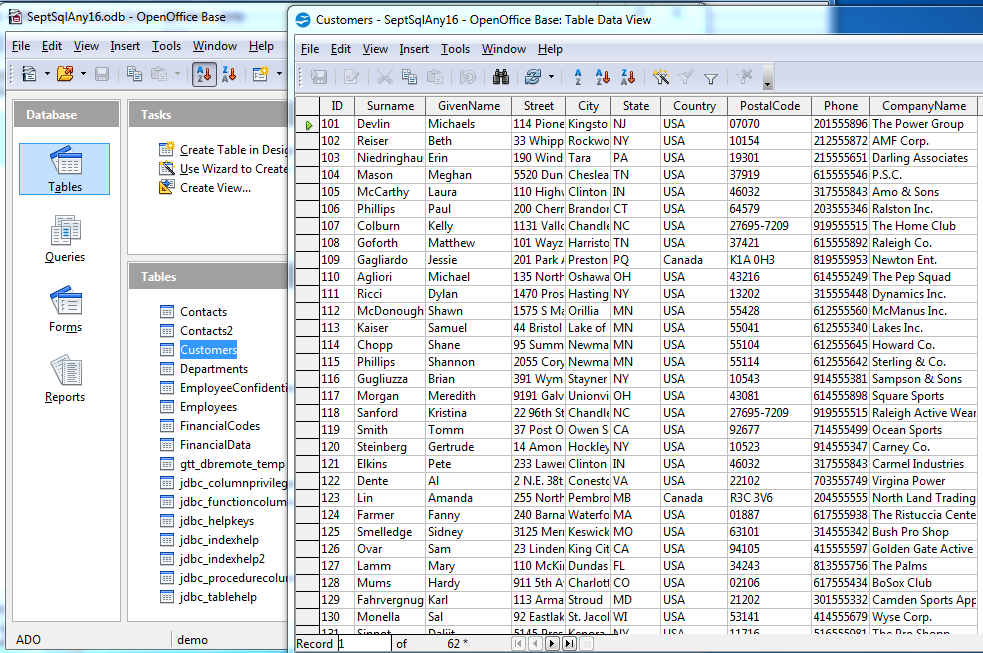
Now we see all the objects. Note at the bottom the type of connection (ADO as shown). You see all the objects although not shown in their original nodes. The database file saved is named, SeptSqlAny16.odb. It has a mixture of objects from the demo database.


This shows that ADO connection is perhaps a better option to connect to SQL Anywhere 16.0 from OpenOffice 4.0.
 
Mahalo,
 
Jay


Friday, September 20, 2013

Do You Need to Connect to SQL Anywhere 16 from OpenOffice 4.0? - Part 3

The problem of viewing table contents is not yet resolved as described in the previous two posts here:

http://hodentek.blogspot.com/2013/08/do-you-need-to-connect-to-sql-anywhere.html

http://hodentek.blogspot.com/2013/09/do-you-need-to-connect-to-sql-anywhere.html

However, a work around was found.
This post describes the work around.

It was noticed that while the table contents could not be viewed in OpenOffice 4.0, the content of a SQL Anywhere view can be viewed in OpenOffice 4.0.

Here is the 'View' node in SQL Anywhere 16 which has the view - ViewSalesOrders.


Here are the contents of the view -ViewSalesOrders opened in OpenOffice4.0


Taking this as the hint, the table in Sybase Central that could not be opened in OpenOffice 4.0 was used to create a View in Sybase Central. The Sept5_View was created in SQL Anywhere 16 with the following statement:


The content of Contacts table in SQL Anywhere 16shown here:


The content of the view - Sept5_View in SQL Anywhere 16 shown here:


The Sept5_View shown in OpenOffice4.0 shown here:


This can be used to create other objects in OpenOffice 4.0

Part 2

Wednesday, February 11, 2015

PowerBI Preview reporting from SQL Anywhere 16 - Part 1

This post describes the steps you may take to connect to SQL Anywhere 16's 'demo' server. Previously you have seen that it is possible to create a linked server successfully using the drivers provided with SQL Anywhere 16.

http://hodentek.blogspot.com/2014/07/use-sybasesaps-sql-anywhere-ole-db.html
http://hodentekmsss.blogspot.com/2014/07/creating-linked-server-to-sapsybase-sql.html

In a future article here are on my other blog, http://hodnetekMSSS.blogspot.com  you will learn how to use PowerPivot to connect to SQL Anywhere 16.

Here are some screen shots of PowerBI  connecting  to SQL Anywhere.
Before you start connecting make sure you have started the SqlAnywhere 16 server successfully and also Sybase Central to verify that you can access the objects.


If you have followed my earlier article here:
http://hodentekmsss.blogspot.com/2015/02/authoring-report-with-power-bi-using.html

You will notice that PowerBI can obtain its data from a Sybase Database as(I am assuming that SQL Anywhere 16 is a Sybase database) shown
Sybase3

Choose Sybase Database and click Connect button. The following screen will be displayed


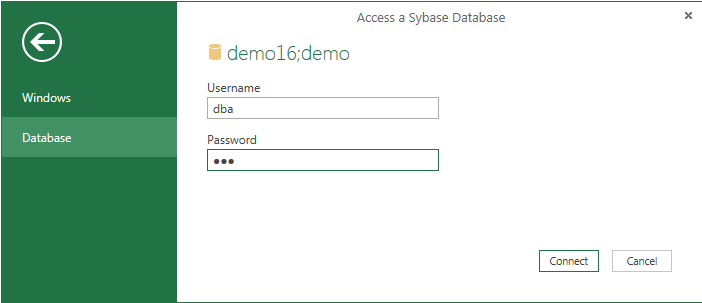
I have superposed the server start up screen on the PowerBI's screen. The server name is demo16. This server takes the pair dba/sql as username and password for connection, a database authentication.

When I complete the database name 'demo' and click Ok on the PowerBI's Sybase Database page, the following will be displayed:
'
Sybase6

I enter the authentication information (dba/sql) and click Connect, the following will be displayed

sybase7
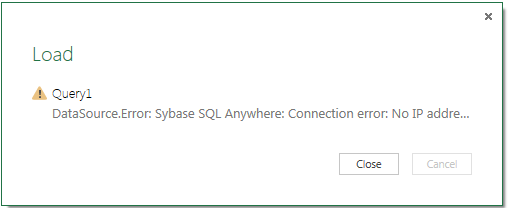
Looks like the program is looking for an IP Address.  Since the server is running on the local computer the IP address should be the same as the computer's IP address. Also from Sybase Central 16 you find the following:

Sybase8

Every connection turns up in a Query in PowerBI and you can delete the query to connect to a new connection. Following the above reasoning the following connection was tried:

sybase9

After clicking OK the following was displayed.


sybase10
However trying to connect produces the following:


sybase16

It appears that there is a connectivity problem via PowerBI where as ODBC Ole DB seems to work as well as ODBC drivers. The PowerBI program certainly needs enhancements in terms of allowing ODBC and OLE DB drivers in addition to the vendor products.  Also the interactive screens should provide a gateway for a solution rather than a hard stop.

I am sure these will improve in the final version. In the mean time if I find a work around you may find it on this blog should you revisit.

Sunday, July 13, 2014

Developer Editions are better choice for SQL Server 2012 and SQL Anywhere 16 for developers


Aloha,
After many years of downloading evaluation editions and using the smaller sized SQL Server Express editions with somewhat limited features, I finally decided to go for SQL Server Developer edition for my future experiments. It costs a bit but you do not have the headaches that may follow after your evaluation period ends in case you use the evaluation software.

I was particularly hit while writing my book on 'Learn SQL Server Reporting Services' where I used the evaluation edition which is the full Enterprise edition. In the middle of the book the computer got into problems due to malware and I had to redo quite a bit of the exercises including the screen shots taken with the previous intallation. These problems persisted and then you have to look for the software used in the first installation (to perform repairs) which got erased when the computer was flattened to repair the bugs. There were endless incidents that aggravated me especially when I received the 'gentle remainders' from my editors.
It is also a good training software for a group of say, unemployed folks looking to find a job in the area of SQL Servers. They could buy a developer edition (and each member installing the express edition on his/her laptop/desktop) and use it is a group sharing cost, and getting a very good (on-the job) training working as a group; checking out features that are available, etc. According to Microsoft the full feature set is available in the Developer edition, except that you cannot use it in production.
Sybase or SAP's SQL Anywhere Server 16 developer edition is another product that is available and this one is free. This edition also has full feature set. It has excellent features for the most complicated of the scenarios you can imagine.

I find this product very easy to use. Download from here:

http://www.sybase.com/detail?id=1055872
http://www.sybase.com/products/databasemanagement/sqlanywhere

Working with these two databases gives you a much broader perspective of data that you may miss using only one of them. Also Microsoft .NET Integration with SQL Server which is almost total by now allows you not only to get your foot into the .NET ecosystem including Microsoft BI but also give you an opportunity to use integration of SQL Server Data with SQL Anywhere data as there are a number of integration points available in SQL Anywhere using Microsoft .NET.

 SQL Anywhere 16 has great features for mobile applications that is another very attractive feature.

I recently installed SQL Server 2012 Developer edition which I purchased from Microsoft store. There may be less expensive (with diminished support in case of a problem) SQL Server 2012 Developer edition from other sources. For example:
http://www.softwaremedia.com/sql-server-2012-developer-license-open-business.html?ovchn=PGR&utm_campaign=Pricegrabber&utm_source=Pricegrabber&utm_medium=CPC&utm_term=MS-E3200993
$32.75
You may find other sites where it is even cheaper than the above.

Where as from Microsoft store here:
http://www.microsoftstore.com/store/msusa/en_US/pdp/SQL-Server-Developer-Edition-2012/productID.281182300
$59.95

Follow the installation steps for SQL Server 2012 Developer eddition on my dedicated blog for SQL Servers here. It should be available in a day or two.
http://hodentekMSSS.blogspot.com
Mahalo

Wednesday, October 09, 2013

Connecting to SQL Anywhere 16 using Visual Studio 2013 RC for Web

You can look at the sample described in this post to see how easy it is to connect to SQL Anywhere from Microsoft VS2013RC-Web.

When you install SQL Anywhere 16 a sample folder is installed in the following location:

C:\Users\Public\Documents\SQL Anywhere 16\Samples

Among the various samples you will find the ADO.NET folder here:

C:\Users\Public\Documents\SQL Anywhere 16\Samples\SQLAnywhere

There are a couple of examples that show how to work with SQL Anywhere 16 using ADO.NET. This post shows looking at the TableViewer sample.

  • Launch VS2013RC_Web and open the console application TableViewer solution file.
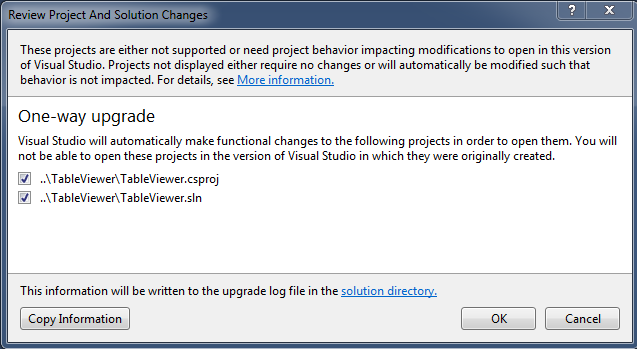
  • The project gets upgraded should you choose to do so and you should see a message as shown.
 
  • Click OK and you get a migration report. Make sure you look at all the message links.

  • The project gets upgraded as shown.


The project should bring up a form and the button events are shown on the right. Clicking any of the button events and you should get  to see the code.

The project when run displays a form containing a couple of buttons and the connection string shows up in one of text boxes (of course this assumes that you have already started the SQL Anywhere 16 Personal demo server).


  • Click Connect and the list of tables gets populated as shown.

  • Choose a table from the drop-down and click Execute. Execute button instantiates a DataReader and the readers reads all the items. You will see all the columns in the table as shown.

Make sure you read the code.

Microsoft Visual Studio 2013 RC_web is an excellent (free) program that you should really check out.

Saturday, August 31, 2013

Do you want to create a report with Report Builder using data from SQL Anywhere 16 ?

Report Builder 3.0 is the present version shipped at the same time as SQL Server 2012. It is a one-stop report authoring tool which can even be launched from Report Manager or from a Reporting services Integrated SharePoint Site. Of course you can download and launch it after installing on your desktop.

Report Builder is described in great detail here:
http://jayaramkrishnaswamy.sys-con.com/node/982742
Creating reports using Report Builder 2.0 is described here
http://jayaramkrishnaswamy.sys-con.com/node/1227111

Report Builder 3.0 is described exhaustively in my latest book


Out of the box it can connect to a variety of vendor products and the inclusion of ODBC and OLE DB makes it extremely convenient to connect to many other (not out of the box supported) products.

Case in point is SQL Anywhere Server 16 for which you can set up an ODBC connection.

This post shows you some of the steps that you can follow to turn out a report from SQL Anywhere 16. The following assumes that you have already started the SQL Anywhere Personal server. The procedure has still some unanswered questions, please read the last section.

The following screen shows how you connect to an ODBC source for a connection embedded with the report.


The next slide shows an ODBC System DSN 'demo' created using the SQL Anywhere 16. In reality this ODBC DSN gets registered when you install SQL Anywhere 16.


The next slide shows that connectivity is OK with 'dba' as username and 'sql' as password.


The final connectivity screen after testing the authentication is shown in the next image.


The Credentials for this connection are shown in the next image.


In order to create a dataset for your report use of Query Designer is not possible as it is not supported. You need to have this information on your hand to insert into the Report Builder's data set page.

The next image shows the InteractiveSQL tool in which a SQL Select statement is used to choose a all the fields from the Contacts table.


The dataset will be created using this embedded connection as shown.


For this, the query contacts.sql created in Sybase's InteractiveSQL is used and persisted to the desktop. This is imported into Report Builder's data set interface as shown using the import button
.


The next image shows the report designer interface taking in a few columns from the data set shown on the left.


This last image shows the report being displayed in Report Builder 3.0


Caution
While the above procedure is correct you may find problems while repeating this procedure and this will be mainly due to the odbc32 and odbc64 problems as I understand it

However, take a look at my bug report to Microsoft connect here


DMCA.com Protection Status