Saturday, September 28, 2013

Oracle software on Windows Azure

You can now have Oracle on windows Azure. Right now (effective immediately) it is in preview which means it is the time for you to check it out without shedding too many dollars.

This became possible as a result of a partnership between Oracle and Microsoft.
 
Customers can run Oracle supported software on:
  • Windows Server Hyper-V
  • Windows Azure
The following Oracle related items are available as preview in Windows Azure image gallery:
  • Popular Configurations of Oracle
  • Java
  • Oracle Database
  • Oracle WebLogic Server
  • Oracle Linux
Customers who have Oracle license can run Oracle on Windows Azure (license mobility is OK)

Read more details here:
http://www.oracle.com/technetwork/topics/cloud/faq-1963009.html

Start your trial here:
http://www.windowsazure.com/en-us/campaigns/oracle/

Mahalo,

Jay

Installation of SQL Server 2014 CTP1 on a Windows 8 partition

This post describes installation of SQL Server 2014 CTP1 on a second partition (Windows 8 Preview) of a computer with Windows 7 on the first  partition. As the first partition had too many of SQL Server 2012 related programs, SQL Server 2014 CTP1 was installed on the second partition clear of any SQL Server installations or programs.

The computer used was a Toshiba Satellite P775 laptop.

Some details of the reasons for using the second partition are described here:
http://hodentekmsss.blogspot.com/2013/09/some-problems-to-install-sql-server.html

The installation of SQL Server 2014 CTP1 proceeds smoothly without any problem on the second partition. The installation screen shots with some annotations can be found here:
http://hodentekmsss.blogspot.com/2013/09/installing-sql-server-2014-ctp1-on.html

Purposes of testing all installation options were chosen as shown here:


When the installation is complete, the program components appear as Apps in Windows 8 as shown here:


The Reporting Services was installed for Native Mode, but the program also installs required files for SharePoint Integrated mode. The developer has to configure the SharePoint Integrated Reporting Services service from Central Administration in SharePoint server.

 
SharePoint Integrated mode configuration; Tabular Mode of Analysis Server; Power View are all described in detail in my recent book here:
 

The Analysis Services server was installed to support Multidimensional model as shown here:


If you are interested in details of the Reporting Services in SQL Server 2012 make sure you get your hands on some of the important links collected here:

http://hodentek.blogspot.com/2013/06/hyperlinks-referenced-in-my-new-book.html

Mahalo,

Jay
 

Friday, September 27, 2013

Windows Azure and two-factor authentication


Two factor authentication beefs up the usual username/password authentication by laying in another layer. You sign-in with username/password but then the authentication proceeds after verifying on a mobil device; an automated telephone call or a text message with a passcode.  This is what is called the Windows Azure multi-factor authentication and is available for,
VPNs
Web applications.
It can run both on existing hardware or Windows Azure Virtual machine. There appears to be a small charge to use this service.
Both Amazon web Services (AWS) and Google Compute service offer this feature and more providers may jump in.

Read details here:
http://techcrunch.com/2013/09/26/microsoft-announces-general-availability-of-two-factor-authentication-for-windows-azure/

This company from Norway seems to provide this alternative through an APP it is planning.
http://techcrunch.com/2013/06/13/encap-raises-2m-for-a-mobile-id-app-as-an-alternative-two-factor-authentication/

 
Watch this video from Microsoft:

Wednesday, September 25, 2013

Big data to aid Big apple

Big data shakes hands with academics.

Big cities are sources of big data. Data comes in streams from all directions from diverse sources like traffic, crime, scams, events, emails, social media sites, weather sensors, sniffers of various kinds, parking lots and you name it. This data is not the kind of data that you can feed directly to a relational engine, it is diverse, a mélange and can only be termed informatics.

A new center, Center for Urban Science and Progress (CUSP) at New York University will be utilizing Big data to understand the dynamics of the city through various sensors and look through the data they bring in. Similar programs are already in place in University of Chicago and MIT. Outside USA similar efforts are in place like Spain and Singapore.

NYU will offer MS and PhD programs and takes an integrated look at physical, biological and informational data form the city's sensors. The data comes from not only installed sensors to measure temperature, pollution etc.  but also from body worn sensors like FitBit, and Up wristbands that volunteers wear and go round the city. Of course data from twitter feeds, blogs, video cameras etc. will be integrated as well.

Well there is no dearth for data from such a large resource as Big Apple.

The program has sponsors committed to Big Data with biggies like Microsoft, IBM, Xerox, City agencies, MTA and a couple of National Laboratories thrown in for good measure.

This post was written after reading this article, ‘Smart Cities will need big data’ in Physics today a journal published by the American Physical Society, September 2013, pp. 19, 20. For details get a copy of the journal from a library near you.

Related resources (Please do not skip):

Watch this video:


Tuesday, September 24, 2013

Do You Need to Connect to SQL Anywhere 16 from OpenOffice 4.0? - Part 4

Accessing SQL Anywhere 16 from OpenOffice 4.0 using an ADO connection allows us to view objects and their contents. The details are described in this post..

When SQL Anywhere 16 is accessed by OpenOffice 4.0 using an ODBC connection, the problem of viewing table contents is not yet settled as described in the previous two posts here:
http://hodentek.blogspot.com/2013/08/do-you-need-to-connect-to-sql-anywhere.html
http://hodentek.blogspot.com/2013/09/do-you-need-to-connect-to-sql-anywhere.html

However, a work around was found and was described in this post:
http://hodentek.blogspot.com/2013/09/do-you-need-to-connect-to-sql-anywhere_20.html

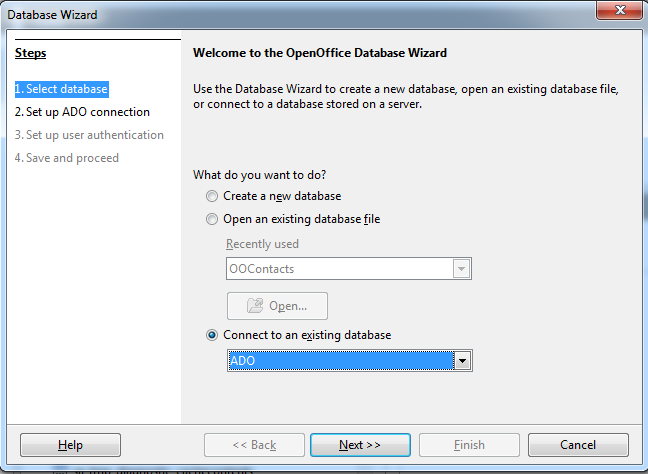
From earlier posts we have seen that OpenOffice 4.0 provides couple of different options to access data.  We start as in earlier posts by launching OpenOffice 4.0 as shown here. It is assumed that the SQL Anywhere 4.0 sample database 16.0 has started and that you can connect to the database from Sybase Central 16.0


We have chosen to connect to SQL Anywhere using the ADO connection as shown above.


In Step 2 we need to set up the ADO connection for which we need to provide an URL.  I have used demo as the URL (not strictly follows the definition of an URL, which is, Internet address: an address identifying the location of a file on the Internet, consisting of the protocol, the computer on which the file is located, and the file's location on that computer).

This was a guess on my part looking at the Personal Server shown here:


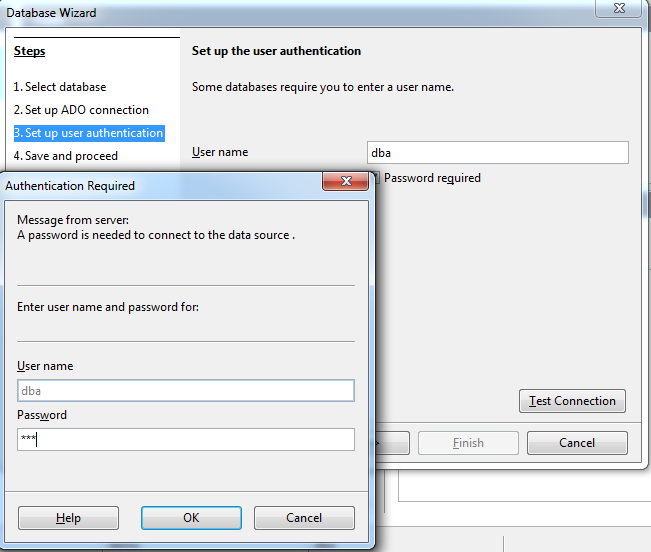
Clicking Next on the OpenOffice 4.0 Database Wizard screen brings up the following wherein User authentication must be set up:

 
We use the same credentials (dba / sql) and click Test Connection.
 

After entering the Password (sql) click OK.


You get a confirmation from OpenOffice Base as shown above.
Click OK.

We have come to Step 4. Accept the defaults as above and click Finish.

 
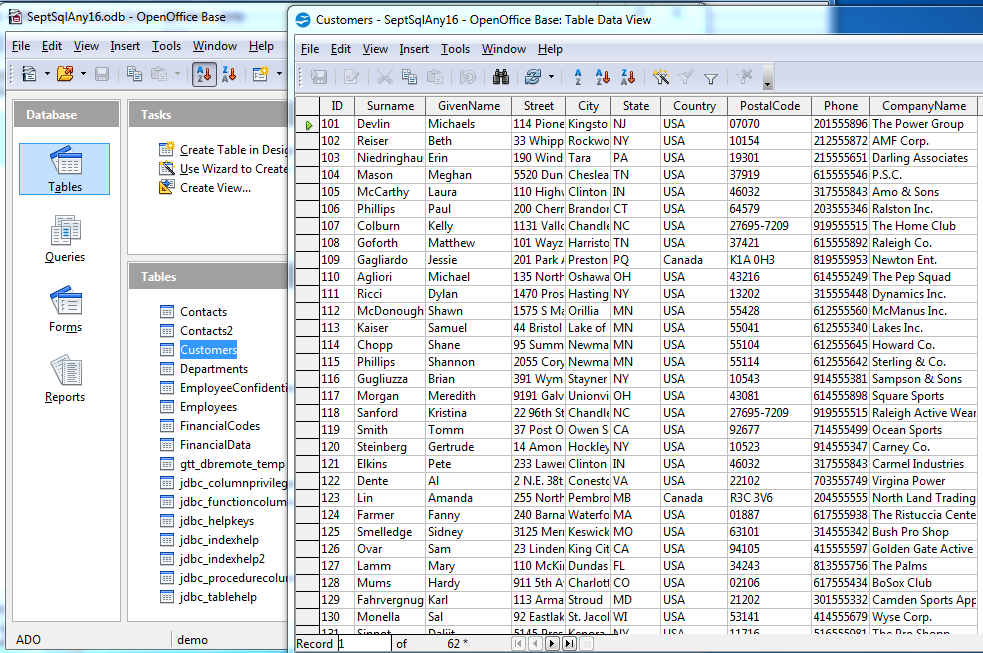
Now we see all the objects. Note at the bottom the type of connection (ADO as shown). You see all the objects although not shown in their original nodes. The database file saved is named, SeptSqlAny16.odb. It has a mixture of objects from the demo database.


This shows that ADO connection is perhaps a better option to connect to SQL Anywhere 16.0 from OpenOffice 4.0.
 
Mahalo,
 
Jay


DMCA.com Protection Status