Wednesday, August 12, 2015

Take your data with you anywhere you go using this App

This app gives you incredible power. It lets you take your data with you anywhere you go.

You can download this app from the three major stores, Windows Store, Apple's App Store and Google Play which means you can access your data using any mobile device.


1.png

It is free. Just enter an email address and Microsoft will send you a download link, can it be easier than this.


2.png

The email link gives you access to the three stores.

Unfortunately, the Get the app link is not active in Microsoft Edge on my Windows 10 Technical Preview for Phones.

Come back and checck later for an update.

Monday, August 10, 2015

Doing BI in the cloud using PowerBI for Office 365

Early last year Microsoft announced the general availability (GA) of PowerBI for Office 365. Office is the most used office program and PowerBI brings in great value by providing a self-service means to discover, analyze and visualize data leading to deep insights.

Using PowerBI for Office 365 one can easily deploy a cloud-based BI application for sharing insights; colloborating and accessing reports from practically anywhere.

Power BI for Office includes the following Microsoft
'Power' tools:
  • Power Query, enabling customers to easily search and access public data and their organization’s data, all within Excel (formerly known as “Data Explorer“).
  • Power Map, a 3D data visualization tool for mapping, exploring and interacting with geographic and temporal data (formerly known as product codename “Geoflow“).
  • Power Pivot for creating and customizing flexible data models within Excel.
  • Power View for creating interactive charts, graphs and other visual representations of data.
What are the main capabilities?

PowerBI allows the companies to include the cloud as an arena in which they can share and colloborate. The DataCatalog; Q & A with natural language support; mobile connectivity are unbeatable capabilities.
  • Quickly create collaborative BI sites – enable anyone to quickly create a collaborative BI site to share workbooks containing data and insights.
  • Keep reports up to date with scheduled data refresh – reports that have been saved to the cloud can now connect back to on-premises data sources to refresh the data and stay up to date.
  • Manage data queries for the team – share not only workbooks but also the data queries created in Power Query for Excel. Team members can now build and manage data queries for others to use when creating their own reports.
  • Maintain a Data Catalog of searchable data – IT departments can now use the Data Catalog feature to make it easier for everyone to find and connect to corporate data by searching for it from within Excel.
  • Ask questions of your data in natural language – with the Q&A features people can type questions they have of the data in natural language and the system will interpret the question and present answers in the form of interactive visualizations.
  • Stay connected with mobile access to your reports – stay connected from anywhere with new HTML5 support and the Power BI windows app.
How much does it cost?

First of all you should be Office 365 Enterprise E3 or E4 customers and it was promotional $20 per month per user for the existing customers. Access this link here for reduced new prices.

However you could sign-up for a free-trial of PowerBi for Office 365 here and you will also get a 30day trial of Office 365 Pro-plus.

I do not have the Enterprise edition but just a $10 month subscription and I get only 'Power Map' add-in in my Office 365's Excel application.I have not figured it out how I may be able to use this without the other tools.

Note: Text in italic taken directly from Microsoft sites.

Friday, August 07, 2015

Major shift in Microsoft Certification is coming

To cater to the millenials, Microsoft has come up with the strategy of offering Microsoft Badges to recognize the competency level. Presently limited to Windows Server technology it may be introduced for the other areas. The badges will appear in the transcripts that the candidates can use to demonstrate their skills.

These badges are not replacments for the MCSE, MCSA and other Microsoft certification tracks but run alongside.

Microsoft is also rolling out online proctoring that will make it easy for examination takers and perhaps take away business from Prometric or other specialized testing centers. Microsoft proctoring is already available in 53 countries.

Read more here:
https://redmondmag.com/blogs/the-schwartz-report/2015/08/ms-planned-badges.aspx
 

Thursday, August 06, 2015

Regarding SQL Server 2016 CTP 2.2

SQL Server 2016 CTP 2.1 was released (June 24, 2015) . CTP 2.0 to CTP 2.1 upgrading is described here

Initial release of SQL Server 2016 CTP 2.2 build with release version 13.0.400.91 had the feature Always On Availability not working as expected and Microsoft has released an updated build with version 13.0.407.1 for SQL Server 2016 CTP 2.2.

The updated version of SQL Server 2016 CTP 2.2, build 13.0.407.1 can now be downloaded from here:
https://www.microsoft.com/en-us/evalcenter/evaluate-sql-server-2016

From the same link you could download SQL Server 2012 SP1 and SQL Server 2014 SP1 as well.
Release notes for SQL Server 2016 are available here.

Windows Phone Recovery Tool worked as advertised

This is about one scenario where you may need to go back to the factory installed settings for your phone. There could be many other cases where you may need to restore the original image of the phone's OS. The Windows Phone Recovery Tool did fix the problem. This post is about restoring the phone to the original state.

This particular scenario is about a Nokia Icon, a Verizon specific phone. It had Windows 8.0 when purchased and later a Windows Phone 8.1 preview was installed. When finally Verizon rolled out Windows Phone 8.1, Nokia Icon was upgraded to Windows Phone 8.1.

Recently Windows 10 Technical Preview for Windows Phone became available. (http://hodentekmobile.blogspot.com/2015/07/good-news-for-windows-phone-users-and.html)

This post here describes the step-by-step procedure to download and install the preview.
http://hodentekmobile.blogspot.com/2015/07/installing-windows-10-technical-preview.html)

However it became apparent that the update/install process did not work even after dozens of trials including soft reset etc. The process would start and go through the process of installing at the end of which the error is displayed.

Interested readers may want to follow this link on the Insider's forum:
I seem to satisfy all requirements but I get 0x80070070 error installing Windows Phone 10 Technical Preview on Nokia Icon

The upgrade to Window 10 Technical preview would now involve two steps:
  • Recover the original Windows Phone 8.1 to the state it was in when upgraded to Windows Phone 8.1
  • Upgrade the phone to the new version namely, Windows 10 Technical Preview for phones (most likely Windows 10 RTM for Nokia Icon may not be available well into 2016, if lucky)
The rest of what follows deals with restoring the phone to its original state, the first step.

After dozens of trials it was decided to restore the Windows Phone to its original state using the Settings/backup on the Windows Phone which will backup
1.apps+settings,
2. text messages, and
3.photos/videos.

After backing up as above the Settings | About| Reset your phone button was clicked. The Windows Phone displayed the usual warnings about a reset operation and went into a series of screen changes which involved the usual screen with 'gears' and sometimes flash of Windows Icon and sometimes just NOKIA in the center of screen. The reset operation did not succeed although the Windows Phone was left connected to the AC mains with the USB cable. After some 14 hours in this state of 'limbo'.
 it was decided to use the 'Windows Phone recovery tool' to recover the Windows Phone to the original settings.

The Windows Phone recovry tool was downloaded from here to the laptop:
http://www.softpedia.com/get/Mobile-Phone-Tools/Others/Windows-Phone-Recovery-Tool.shtml


Click Download button on this page to display


Click on External mirror1 and save the file to the laptop or PC.

 
Windows Phone Recovery Tool 2.1.1 details:
----------------
2.1.1 **
- Bug fixes
** 2.1.0 **
- SW recovery improvements for Lumia Phones that are not detected.
- Bug fixes
** 2.0.3 **
- Support for HTC One Windows Phones.
** 1.2.4 **
- Bug fixes and small improvements.
** 1.1.0 **
- Tool is now localized in 40 different languages.
- Several bug fixes.
** 1.0.6 **
- Bug fixes
** 1.0.4 **
- Bug fixes
** 1.0.3 **
- This is the first official release of the new Windows Phone

Software Recovery Tool. Tool currently supports all WP8 Microsoft
Lumia phones and later also other brands.
- Software recovery allows you to get the phone to latest available

software version. All user data will be erased in the process.
---------------------------------------------------------------------------------------------------
 Double click the tool in its saved location.


Connect your phone to the PC (in this case a laptop) with the USB Cable. Do not disconnect or mess with phone till the process is complete. You may need to push the Volume Low and Power buttons on the Windows Phone together till it vibrates.

 
The recovery tool properties for Nokia Lumia.
 
ToolProps.png
 
Click on Lumia icon.


The program is waiting for the phone to be connected. You should really get the phone to connect by pressing the Volume down and Power down/up button till you feel the vibrations.


Click on the Install Software button. Another warning and a disclaimer.

Click Continue. A package will be downloaded and it is a hefty file (1.6GB). This takes quite a bit of time depending on your Internet connection speed.


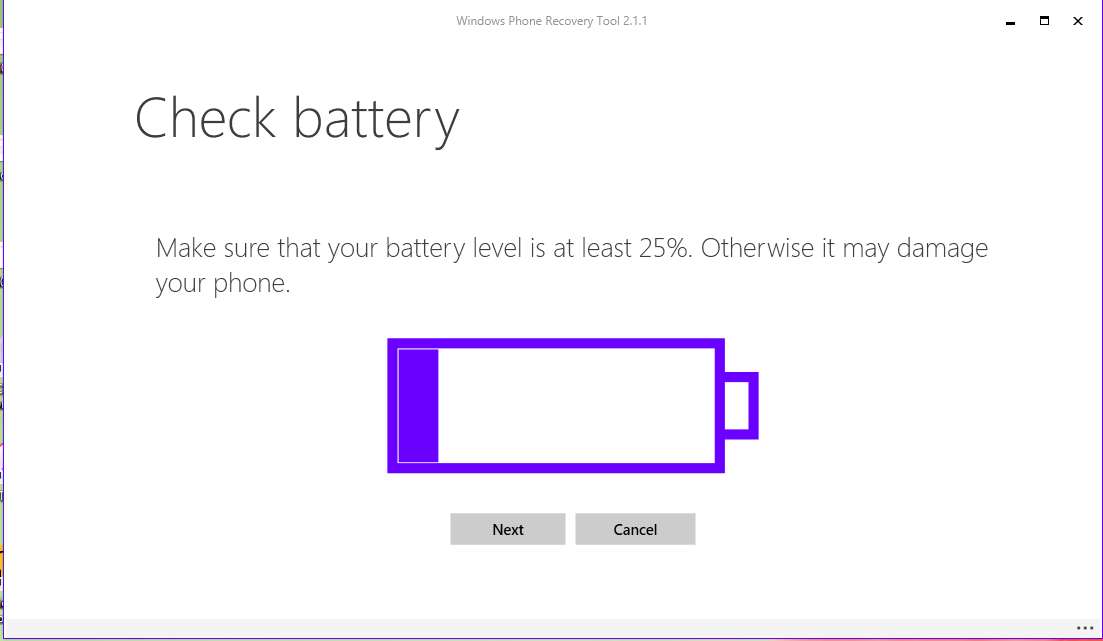
It is better to start with fully charged battery.

Click Next.

The package installation process begins. The phone selection page is displayed. If it does not you ma have to press hard the Volume down and Power buttons together till you feel the vibration.


Click on Lumia 929 (this is Lumia model number for the Nokia Icon).

The program will try to read the phone information.

By this time your phone starts up with Verizon and Windows splash screens and you will asked to customize. The phone is now restored to the Windows Phone 8.1 Original.

The restore agent will pop-up and guides you through restoring the app settings etc. Your apps, alarms, contacts will all be recovered. The photos/videos are all gone, perhaps uploaded to the OneDrive. If it was uploaded to OneDrive, I am not sure which named location it was uploaded to. Fortunately I had copied all the photos/videos to a 1TB drive.

The version of Windows Phone 8.1 restored was the following:


DMCA.com Protection Status