Showing posts with label Desktop. Show all posts

Wednesday, March 09, 2016

Lightswitch App with Vsiual Studio 2015 Community needs Office Tools

The original installation of Visual Studio 2015 Community did not have templates for the Microsoft Lightswitch.

However, in order to use the Microsoft Lightswitch template you need to install the OfficeToolsForVS2015. The next link takes you directly to the site to download the file. In my case, I had it installed from Web Platform Installer 5.0. However, I am not able to take you to the link.

https://www.microsoft.com/web/handlers/WebPI.ashx/getinstaller/OfficeToolsForVS2015.appids

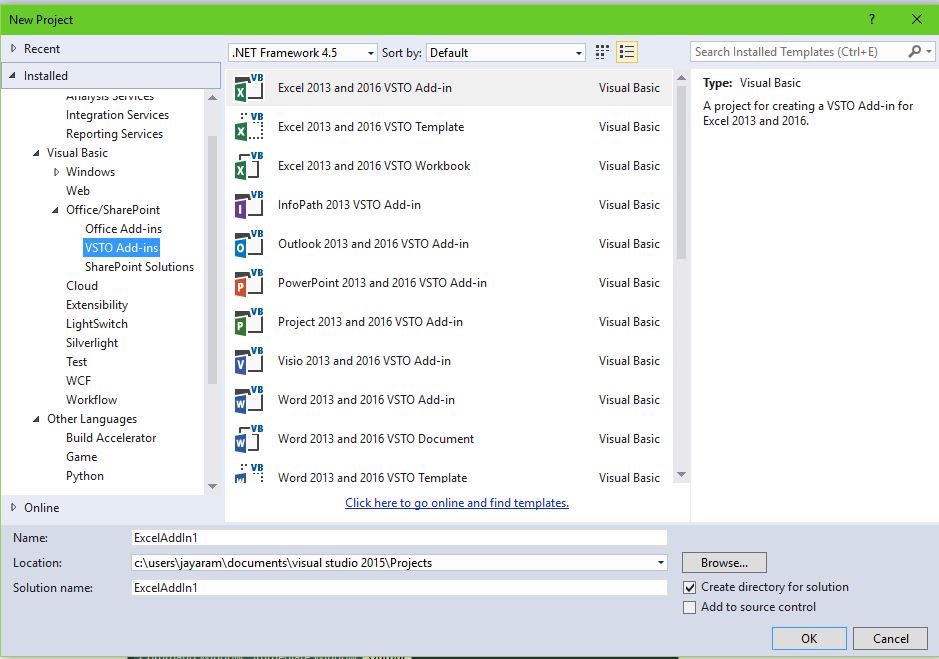
Once you install the Office tools using the above then you will see the Lightswitch project template as shown here with a HTML application and a Desktop application template:


LS2015_NewProj01
There are templates for C# as well.


LS2015_NewProj02

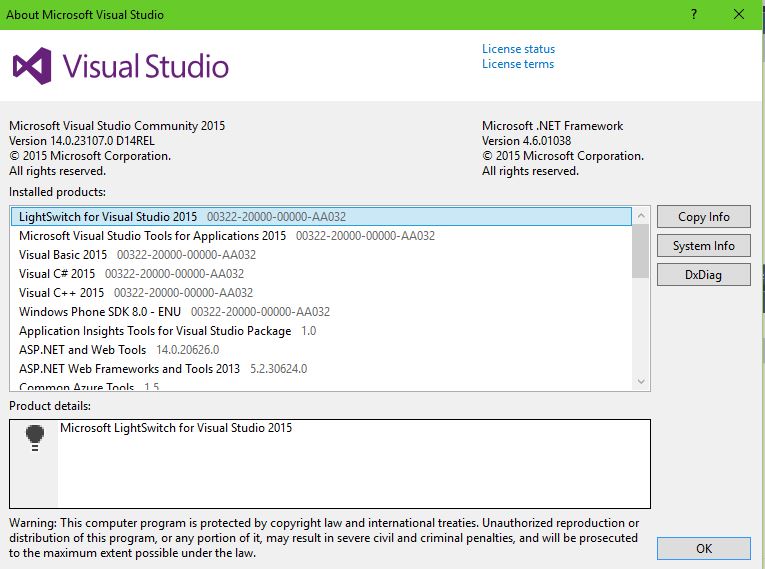
The About Microsoft Visual Studio drop-down from Help shows more details of the version.


LS2015_NewProj00

In addition to Lightswitch you also get a whole lot of templates for Office/SharePoint as  shown here:
LS2015_OfficeVstoSP

Wednesday, November 04, 2015

Before you do any migration master the MAP

MAP toolkit is a great tool to find information on various items of your computer/server. Before you think of migration of any kind, a tool such as this one is going to be very helpful.

MAP which stands for Microsoft Assessment and Planning Tool, presently in version 9.3 is according to Microsoft,

"The Microsoft Assessment and Planning (MAP) Toolkit is an agent-less inventory, assessment, and reporting tool that can securely assess IT environments for various platform migrations—including the latest versions of Windows client and server operating systems, Microsoft Office and Office 365, Microsoft SQL Server, Hyper-V, Microsoft Private Cloud Fast Track, and Windows Azure.
"
MAP Toolkit can deal with most of the following scenarios:
  • Cloud
  • Desktop
  • Server
  • Desktop Virtualization
  • Server Virtualization
  • Database
  • Usage tracking
  • Environment
This covers all most everything you ever dealt with in your computer.

Where can I get this tool?
Download from here .

Double click the downloaded file (MAPSetup.exe) and you are ready to go.

Here are things you can find about the Desktop:

Map_Desktop

This one about what you can find about the Cloud:


Map_Cloud.png

You can use MAP to inventory any of these. This is indeed a big list.

•Windows 10
•Windows 8.1
•Windows 8
•Windows 7
•Windows Vista
•Windows XP Professional
•Office 2013 and previous versions
•Windows Server 2012 R2
•Windows Server 2012
•Windows Server 2008 R2
•Windows Server 2008
•Windows Server 2003 R2
•Windows Server 2003
•Windows 2000 Professional or Windows 2000 Server
•Internet Explorer
•VMware vSphere
•VMware vCenter
•VMware ESX
•VMware ESXi
•VMware Server
•Selected Linux distributions
•SQL Server
•Oracle
•Hyper-V
•Lync
•System Center Configuration Manager
•Forefront Endpoint Protection
•Exchange Server
•SharePoint Server
•BizTalk Server
•Visual Studio 2010 and 2012 Premium and Ultimate editions
•Software ID (SWID) Tags

Friday, July 11, 2014

Have you installed Windows 8.1 Update 1?

This update would have taken place during one of the Windows Updates event (this happened in April 2014 in my computer). The computer properties does not give a clue that this happened. For example the Windows 8.1 Update 1 has been installed but the property page displays this:


However, this update can be installed manually as well, by downloading and installing a set of the following KB articles):


These can be downloaded from WindowsUpdate.com site.

If you search for these files in the Installed Updates window (Control Panel | Programs | Programs and Features | Installed Updates you may draw a blank except for the first two files. Only when you try to install them (this is a scenario in which you do not know that Update 1 has been installed) you would get a message that it is already installed.

However after the update you will notice that when you start the computer it boots to the desktop and not the Metro screen. You can also right click the Windows Logo occupying the place of the Start button in the previous version (Windows 7 and older) you can access a menu as shown:

Actually this is quite useful as it provides link to most of the stuff on the computer.

In the Metro screen you gt contextual drop-down menu for the apps; as well as you can get Power Options and Search without any swiping. This should satisfy the mouse users.


The Pin to taskbar menu item allows you to activate the app you want from the desktop screen.

 
Another thing you may notice is that all apps have a title bar showing the app logo at top left and minimize and close buttons top right. Quite useful too.

 
DMCA.com Protection Status