Showing posts with label SSMS. Show all posts

Monday, February 17, 2025

Get ready to develop with SQL Server 2025

  I have not yet done looking at SQL Server 2022, SQL Server 2025 is ready to go. Microsoft is indeed relentless! 

Microsoft announced SQL Server 2025 at the Microsoft Ignite event in Chicago. Now , AI spans all over the Microsoft Eco system and that includes SQL Server. This time around Microsoft introduced SQL Server 2025 and SQL database on Fabric.


SQL Server is integrated with AI with:

  • Vector search
  • Vector Indexing using DiskANN
  • T-SqL functions to support generation embedding and text chunking

Another useful feature added is the support for calling external REST APIs into SQL Server, a feature that existed in AZURE SQL Database. This AI feature makes it easy to store your AI models on premises and use them right away.

SQL Server 2025 will have optimized locking and will support native JSON datatype and improvements to Always on Availability groups. Also,GIT support for Microsoft Management Studio was announced. With this SSMS has now what is called a dark mode! 

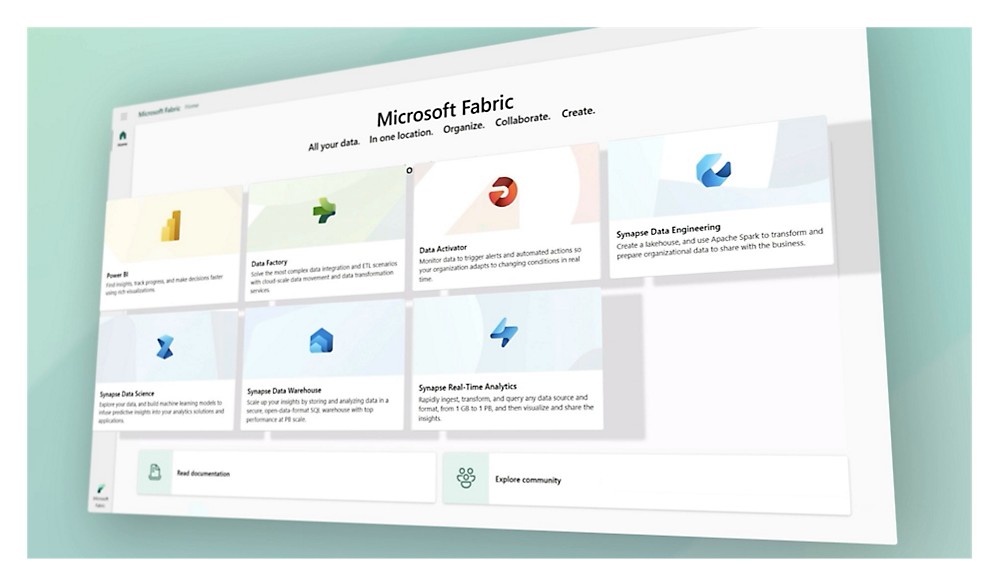
Furthermore, a new product was announced, the SQL Database on Fabric. Microsoft Fabric is its unified analytics platform that integrates various datatools under one title. It is supposed to simplify data analysis and insights for both professionals and business users. 

Hey, Google does not have one such thing under a single title, but it has various functionalities dispersed in its cloud.
Let's move on!

More here:

https://www.microsoft.com/en-us/sql-server/blog/2024/11/19/announcing-microsoft-sql-server-2025-apply-for-the-preview-for-the-enterprise-ai-ready-database/

Vector Search

It is an incredibly useful tool. The reasons are listed here:

  • It understands meaning, not just keywords: Unlike traditional search that relies on exact matches, vector search understands the semantic meaning and context of your query. This means you get more relevant results, even if you don't use the "right" words.   
  • Handles diverse data types: Vector search isn't limited to text. It can work with images, audio, and even video, allowing you to search across different types of data.   
  • Scales well: Vector search is designed to handle massive datasets, making it ideal for applications dealing with large amounts of information.   
  • Powers advanced applications: Vector search is a key component in recommendation systems, anomaly detection, and semantic search, driving many of the online services we use daily.


Tuesday, June 08, 2021

Microsoft GUI tools for SQL Server Database

 Some people like GUIs more than scripting languages. They can still manage to work with SQL Servers.

Databases reside in the database servers. These servers may reside on your laptops, computers running with various operating systems such as Windows, Linux, and macOS. These servers may run in the cloud such as Azure. The tools, however, may not reside on the same platforms but allows you to connect to the various above-mentioned servers.

In brief, the tools are the following:

1. Azure Data Studio uses the operating systems, Windows, macOS, and Linux

This tool can run on-demand queries and save data as text, JSON, or Exel. It has a lightweight editor

2. SQL Server Management Studio (SSMS)

It is a full-featured GUI as well as it can run TSQL statements. It has tons of features.

It is a one-stop database management tool.

It can connect to the cloud, Azure SQL Database, Azure Synapse Analytics, etc.

Developers and DBMs of all skill levels can use this tool.


3. SQL Server Data Tools(SSDT) 

Using this you can build relational databases, Azure SQL databases, Analytical  services, integration services, reporting services, etc

4. Visual Studio Code

Using the "mssql extension" for Visual Studio Code you can connect to SQL Servers

You can do scripting with a lightweight editor after connecting to SQL Server in Visual Studio.

You can find extensive references to complete articles on the following sisters blogs:

http://hodentek.blogspot.com

http://hodentekMSSS.blogspot.com

More on GUI tools here:

https://docs.microsoft.com/en-us/sql/tools/overview-sql-tools?view=sql-server-ver15


Thursday, January 09, 2020

Hands-on Learning Event in Honolulu 1 : Introduction to Structured Query Language

A new session is going to start soon. Sign-up here.


Microsoft SQL Azure Database: SQL Server in Microsoft Cloud
Windows PowerShell for SQL Server


My sincere thanks and best wishes to my students in the previous meets of this course.

Wednesday, July 08, 2015

SQL SERVER MANAGEMENT STUDIO'S New Avatar

SQL Server Management Studio (SSMS) always accompanied the installation of SQL Server. Now that is history. SSMS can now be independently installed starting with SSMS June 2015 Preview.
You can download it from here (https://msdn.microsoft.com/en-us/library/mt238290.aspx).

I have been working with various versions of SSMS for quite a long time. SSMS provided the best learning experience for SQL Server. In fact most of my learning was on SSMS. However, at times there were problems as well, especially with multiple versions of SQL Servers including the preview editions with expiry dates. The client (SSMS) used to be linked to the expiry dates and the other installed versions could not be accessed as the client always complained that the Server was out of date. It required repairing the shared components that always did not work correctly either due to the unavailability of the installation media or some other reason. This de-linking of SSMS from SQL Server probably would solve the problem.

Installing with Web Installer makes it lot more easier and attractive.


These are the new enhancements for SSMS(from BOL):
  •     New SSMS Installer - SSMS can now be installed with a light weight stand-alone web installer.
  • SSMS Updates - Receive notification within SSMS when new updates are available, and choose to install them at your convenience.
  • Enhanced SSMS support for Azure SQL Database – Several fixes and enhancements, including expanded SQL Server Management Objects (SMO) coverage, and an updated Import/Export wizard.
It is time for you to switch as well.
------------------------------
Notes on Installing:
http://hodentekmsss.blogspot.com/2015/07/notes-on-installing-sql-server.html

Tuesday, July 08, 2014

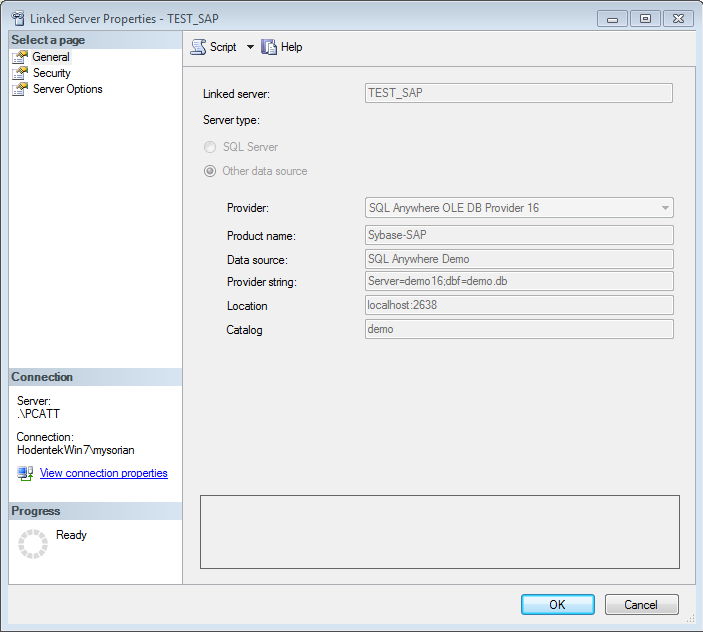
Use Sybase(SAP)'s SQL Anywhere OLE DB Provider 16 to create a linked server in SQL Server 2012

Linked servers offer the following advantages as noted in MSDN documentation:

•The ability to access data from outside of SQL Server.
•The ability to issue distributed queries, updates, commands, and transactions on heterogeneous
data sources across the enterprise.
•The ability to address diverse data sources similarly.

There are two ways to create Linked Servers in SQL Server 2012.
  • Using SQL Server Management Studio
  • Using the sp_addlinkedserver stored procedure
Microsoft SQL Server 2012 has two providers to connect to SQL Anywhere 16 from SAP (Sybase). They are,


MSDASQL - Microsoft OLE DB Provider for ODBC
SAOLEDB.16 - SQL Anywhere OLE DB Provider 16

When you install SQL Anywhere 16 the servers can be used for both architectures.,
Of the two providers MSDASQL cannot be used as no MSDASQL is available for x64bit and attempts to use it to configure a linked server results in failure.

However if you use SAOLEDB.16 you can successfully create a linked server.


For a detailed step-by-step explanation review the following link:
http://hodentekmsss.blogspot.com/2014/07/creating-linked-server-to-sapsybase-sql.html

Tuesday, April 01, 2014

You want to do real-time business with real-time insight, download SQL Server 2014 right now

You can download SQL Server 2014 from the Technet Evaluation Center here:
http://technet.microsoft.com/en-US/evalcenter/dn205290.aspx

You can also download the express version here:
http://msdn.microsoft.com/en-US/evalcenter/dn434042.aspx

You get the following programs in the express edition:
  • LocalDB (SqlLocalDB)
  • Express(SQLEXPR)--Database Engine only
  • Express with Tools(SQLEXPRT)---Install & Configure database server+ SSMS
  • SQL Server Management Studio Express(SQLManagementStudio)
  • Express with Advanced Services(SQLEXPRADV)--includes Full Text Search & Reporting Services
Summary of some basic requirements:
  • .NET 3.5 SP1 is a requirement and is not installed by set up.
Download the above from here:
  • .NET 4.0 is also a requirement but the installaiton program downlaods and installs it.
  • PowerShell 2.0 is also a prerequisite and you have to install it if it is not present.
Operating Systems on which you can install:

Full list can be accessed here:
http://msdn.microsoft.com/en-us/library/ms143506(v=sql.120).aspx#hwswr

  • Enterprise and Business Intelligence versions installs only on Windows Servers (2012 and 2008 R2)
  • Standard Edition can be installed on Windows 7(x32 and x64) and windows 7 SP1(Ultimate to Professional)
  • SQL Developer covers the widest Windows operating Systems.
  • SQL Express can be installed on above mentioned Servers as well Windows 8, Windows 8.1 and windows 7 SP1


Monday, November 22, 2010

Houston based SQL Azure DB Manager on Windows Azure

In my previous post on Houston I had mentioned how easily Houston manages SQL Azure with its coool looking web interface providing capabilities not present in SSMS. Microsoft has taken Houston to integrate SQL Azure Services with the Windows Azure with a brand new interface. The SQL Server instance management got so much easier with this nice addition.

The new Silverlight based, Wizard driven portal integrates all of Windows Azure giving you a new database manager (cloud hoisted 'Houston'). This should be available soon.

For details listen to the Tech Ed Europe 2010 video by David Robinson here.
http://europe.msteched.com/Topic/List
COS222 - What’s New in Microsoft SQL Azure

Wednesday, July 21, 2010

SQL Server Compact 3.5 with SQL Server Management Studio

Microsoft SQL Server Compact is an embedded(able) database ideal for desktop, (hand-held) mobile devices and web clients. It is free to download (also free to deploy and redistribute) and comes in the form of just one code-free file. Its small foot print makes it easy to deploy it to a variety of device sizes and requires no administration. It also supports a subset of T-SQL and a rich set of data types. It can be used in creating desktop/web applications using Visual Studio 2008 and Visual Studio 2010. It also comes with a sample Northwind database. It is ideally suited to offline and occasionally connected clients.

 For using SQL Server Compact with Visual Studio please follow this link.

In this article "SQL Server Compact 3.5 with SQL Server Management Studio"  managing SQL Server Compact 3.5 from the SQL Server Management Studio which is installed with SQL Server 2008 R2 Nov-CTP (or R2 RTM) will be described. Alternately one could also use SSMS bundled with SQL Server Express 2008. Creating databases, tables, indexes and nested queries are also described.

Monday, December 14, 2009

Want to hear a 15 minutes intro to SQL Azure?

Come and attend my talk at NJSQL User's group meeting here.


These questinos will be answered:
What is SQL Azure?

Where does it fit in?

How do you get a SQL Azure Account?

How do I get on to it?

What is the first thing I do with it?

How do I create a database?

What do I need to work with it in SSMS?

How do I populate a database with objects?

What tools are available for me to work with SQL Azure?

Can I create a linked server?

Does it work with XML?

How do I migrate data to SQL Azure?

How do programs interact with data?

How do I synchronize data ?

What tools are there for me in Visual Studio?

Thursday, November 26, 2009

SQL Server 2008 R2 Nov CTP installs easily on Windows 7

I had problems installing on Windows XP SP3 but it was very easy on
Windows 7 Ultimate Evaluation copy (build 7100). If you have Visual Studio
2008 you may need to apply SP1 before you complete installation on
Windows 7.

I installed a named instance Hodentek\KUMORI (ver 10.50.1352) which is a minor
upgrade to SQL Server 2008 RTM. If you want to work with a database in the cloud
(SQL Azure) you need SQL Server 2008 R2 Nov-CTP.


SSMS treates Cloud based database like a second (poor) cousin by not offering the full
support like it does for the on the premises database. Well, well the SQL Azure looks like it is still 10.25. Is it becasuse I used the October CTP?

Notice the missing green color. For the ground based databases it provides the
full GUI but for the Cloud based database you get mostly script support that means
sharpen up your TSQL scripting skills.

Ground based database options for Users


Users options for Cloud based database


Click New User.. and you don't get a GUI window but a script template like this:


But this is a great improvement over the previous version of SQL Server 2008.

Thursday, September 24, 2009

Two great tools to work with SQL Azure

You got an invitation, and you figured out how to create a database. Now you want to see some action. You want to look at database objects and populate the databases with data you can work with. Here are two great tools that you can use.


SQL Azure Manager and SQL Azure Migration Wizard are two great tools to work with SQL Azure. SQL Azure Manager can be downloaded from <http://hanssens.org/tools/sqlazuremanager/>here. SQL Azure Migration Wizard can be downloaded from <http://sqlazuremw.codeplex.com/Release/ProjectReleases.aspx?ReleaseId=32334>here.

SQL Azure Manager takes your credentials and access your database on the SQL Azure. Presently I could see only tables and views in this version. No stored procedures. I tried to delete a table I had created earlier with SSIS, but somehow it could not drop that table. Perhaps table names with white spaces are 'no,no'. It is a very easy to use tool.

SQL Azure Migration Wizard is a nice tool. It can connect to (local)Server as well as it supports running scripts. I tried running a script to create 'pubs' on SQL Azure. It did manage to bring in some tables and not all. It does not like 'USE' in SQL statements(to know what is allowed and what is not you must go to MSDN). For running the script I need to be in Master(but how?, I could not fathom). I went through lots of "encountered some problem, searching for a solution" messages. On the whole it is very easy to use tool.

If these tools can be attached to IIS 7 Database Manager there will be one great tool to work with SQL Azure.
DMCA.com Protection Status
