In order to follow this post kindly review the previous post here:
http://hodentek.blogspot.com/2014/09/sql-server-deployment-in-azure-cloud.html
Let us create one using the image, SQL Server 2012 SP2 WEB.
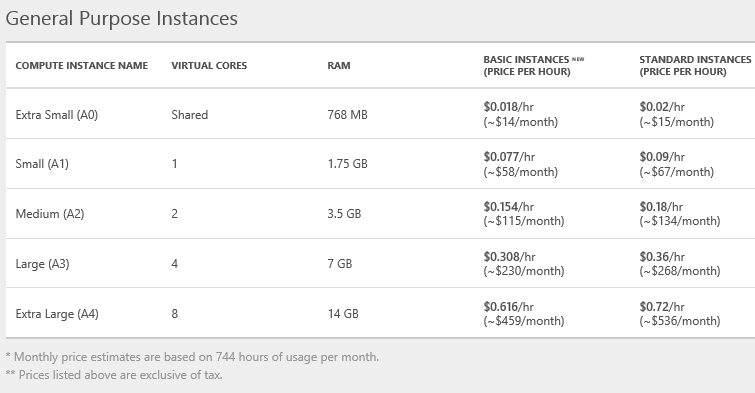
Read the details for this image. Also click on the Pricing Information for this image.
Ref Image: SQLAzureVM08
Highlight the image and click on the arrow at the bottom.
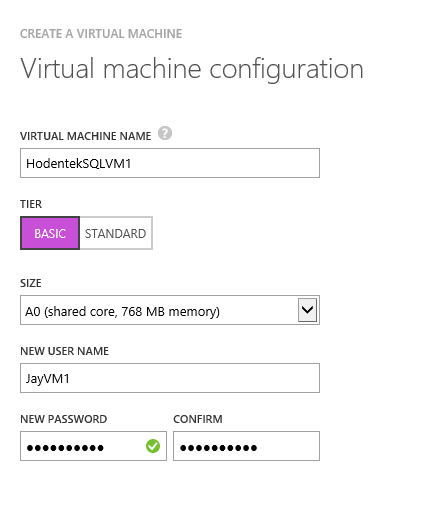
In the Virtual Machine configuration provide a name and the Tier you want to use (Herein the least expensive and the smallest)
Provide a user name: JayVM1
Password should have 8 characters, at least three of the following (small case, one capitalize, one number and a special character)
New Password: 1SQLOliver (the application does not exist anymore)
RefImageSQLAzureVM09
Click on the arrow at the bottom.
You need to configure further
SQLAzureVM10
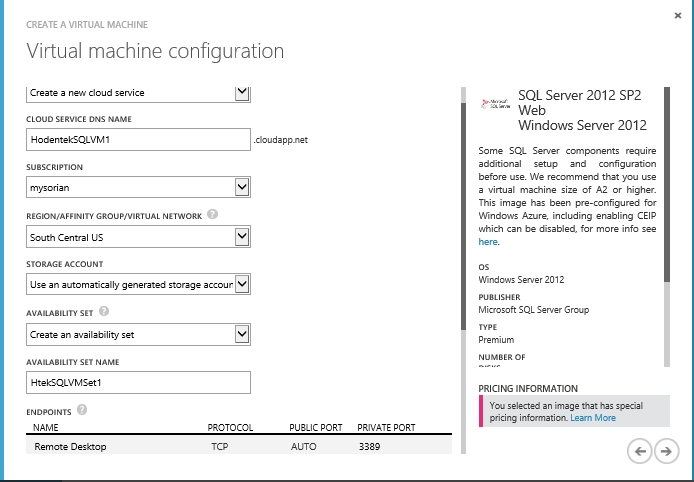
There is already a cloud service and for this VM we create a new cloud service.
For Region/Affinity group/Virtual Network the default is acceptable. You can use any other different geographical regions.
Also accept the default to use an automatically generated storage account.
It is prudent to create an availability set which is useful in case of certain kinds of failures.
SQLAzureVM11
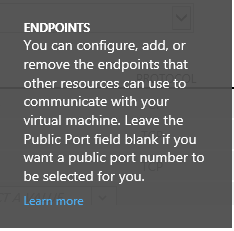
Accept the default endpoints that allows communication with the virtual machine.
SQLAzureVM12
Create availability set.
SQLAzureVM13 and SQLAzureVM14
Final page of VM Configuration. You do not have to configure extensions. I suppose these can be done later if needed. Read each of them and see what these extensions are and why you may need.
This may take a little while and you should be able to look at the status in the portal.
SQLAzureVM15
Connecting to Virtual Machine
When you click on Connect at the bottom, you will get the following message (to open or save a RDP file).
SQLAzureVM17
Click save and save it to downloads.
This is the Remote Desktop Connection file
SQLAzureVM18
Double click the file at the download location
SQLAzureVM19
The remote computer is the DNS address of the VM on Azure.
The program runs and a form requesting log-in information is displayed.
SQLAzureVM20
You can use your Microsoft account or use another account
Herein the Microsoft account is attempted. Looks like the credentials did not work. You have to supply the username/password created during configuring the VM.
SQLAzureVM21 and SQLAzureVM22
This time you get a message regarding identity of the remote computer. The name of the certificate in the remote computer is the same as the VM name.
SQLAzureVM23
Click Yes and you get connected to the remote computer(azure).
(few more screen shots missing here during the connection dns configuration)
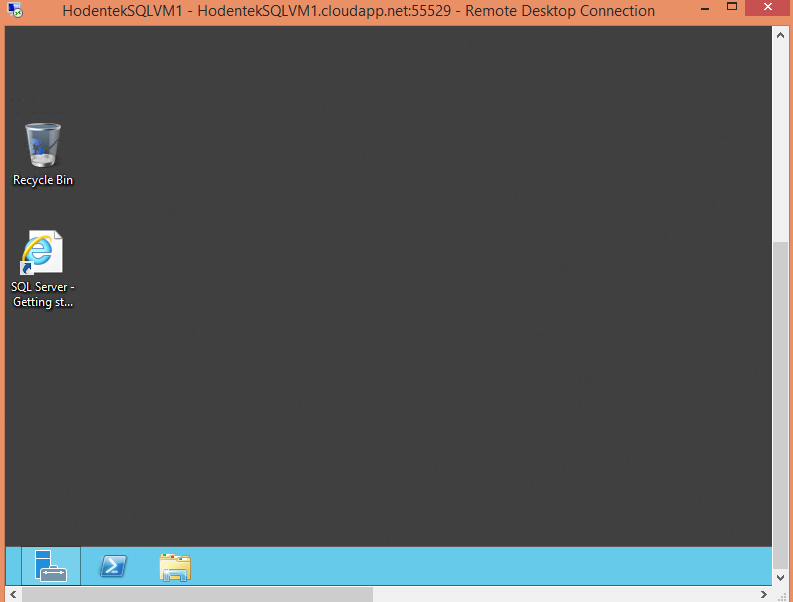
After setting up personal profiles etc, the VM gets displayed as shown.
SQLAzureVM24
Here is the Server Manager Screen.
SQLAzureVM25
At the bottom of the screen you will find the Server Manager, PowerShell and access to local folders on the machine.
SQLAzureVM26
Now you are ready to rock and roll!
Mahalo