Showing posts with label sqlops. Show all posts

Thursday, November 29, 2018

Restoring a legacy database to SQL Server 2017

Northwind database is a legacy database from earlier times and this post shows it can be restored to the latest SQL Server.

The short answer is, Yes.

Azure Data Studio (ADS) is a cross-platform database management tool for managing SQL Servers and it was previously named SQL Operations Studio.

If you do not know what Azure Data Studio, Please review this.

If you want to install Azure Data Studio, Please review this.

In what follows, just follow the indicated steps after launching Azure Data Studio. As a preparation you need to:
  • Connect to SQL Server 2017 from within ADS
  • Have in hand the backup file (*.bak)
  • Make sure you place the above in the Public folder
I am connected to SQL Server 2017 which is installed on my desktop (laptop). It is a default installation as described in the links above.

After I launch ADS and connecting to SQL Server 2017 (default instance), this is what I see. I have no User Database. You are seeing only the System Databases,


I click on the Restore in Tasks and the following page opens. I am restoring from a File and use the handle for Restore from and change it to file and then browse for the backup file which is in my case,
Northwnd.bak.


I browse my computer for the legacy database file (Northwind.bak) and browse to its location in the Public folder as shown.


 The rest of the fields you can accept the defaults unless you want to change, as shown. As soon as you indicate the file, it gets displayed as shown.


Click Restore and it gets restored. You see it in the ADS user interface as shown.

Before Restore

After the restore operation

It took ridiculously three steps to restore.

You can verify it in SSMS version 17.9.1


You need to Restore before you see the new object in Object Explorer.


Wednesday, August 29, 2018

You now have SQL Server Agent in SQL Operations Studio

SQL Operations Studio is the lightweight tool to carry out administrative tasks on a SQL Server Instance. SQL Server Agent is a tool in SQL Server Management Studio that does a lot of work created as Jobs.

In the July 2018 Preview, Microsoft has introduced SQL Server Agent by way of an extension so that SQLOPS can be used to work with SQL Server Agent without using the SQL Server Management Studio making it a lot easier and productive.

You can install the July 2018 version needed as shown here:
https://hodentekmsss.blogspot.com/2018/08/install-latest-version-of-sql.html

You can work with SQL Server Agent by installing the extension as shown here:


Saturday, February 17, 2018

More SQL Operations Stuido features in the Feb 2018 release

Read my previous articles (9) on previous versions.

Download the February (latest) release of Microsoft SQL Operations Studio here.

There are couple of enhancements over the previous release. The following has been fixed or added:

Added Auto-Update Installation feature
Added Connection Dialog ‘Database’ Drop-down
Added functionality for new query tabs keeping active connection
Fixed bugs in SQL Editor and auto-completion

This is the version I have now.


When I update, my version is:


When I launched my previous release, I could access the latest. Clicking on this I could install the latest release.


Set up preparatory stage.


I did not see a drop-down of all databases. It did not find the databases. It just reverted to default in the drop-down.


However, it could keep two query windows open at the same time, maintaining two different connections.


Thursday, January 25, 2018

Backup a database using a file using Micrsoft SQL Operations Studio

It is quite easy. In fact you can restore Northwind database from the CodePlex site to SQL Server 2017 Developers edition.

Watch this video on YouTube for a step-by-step procedure:

Read this post of how you may do this using SQL Server Management Studio:


If you are interested in installing SQL Server 2017 Developer Edition on Windows 10 Pro.
Read this post:

Restore a database using Windows PowerShell:

Friday, January 19, 2018

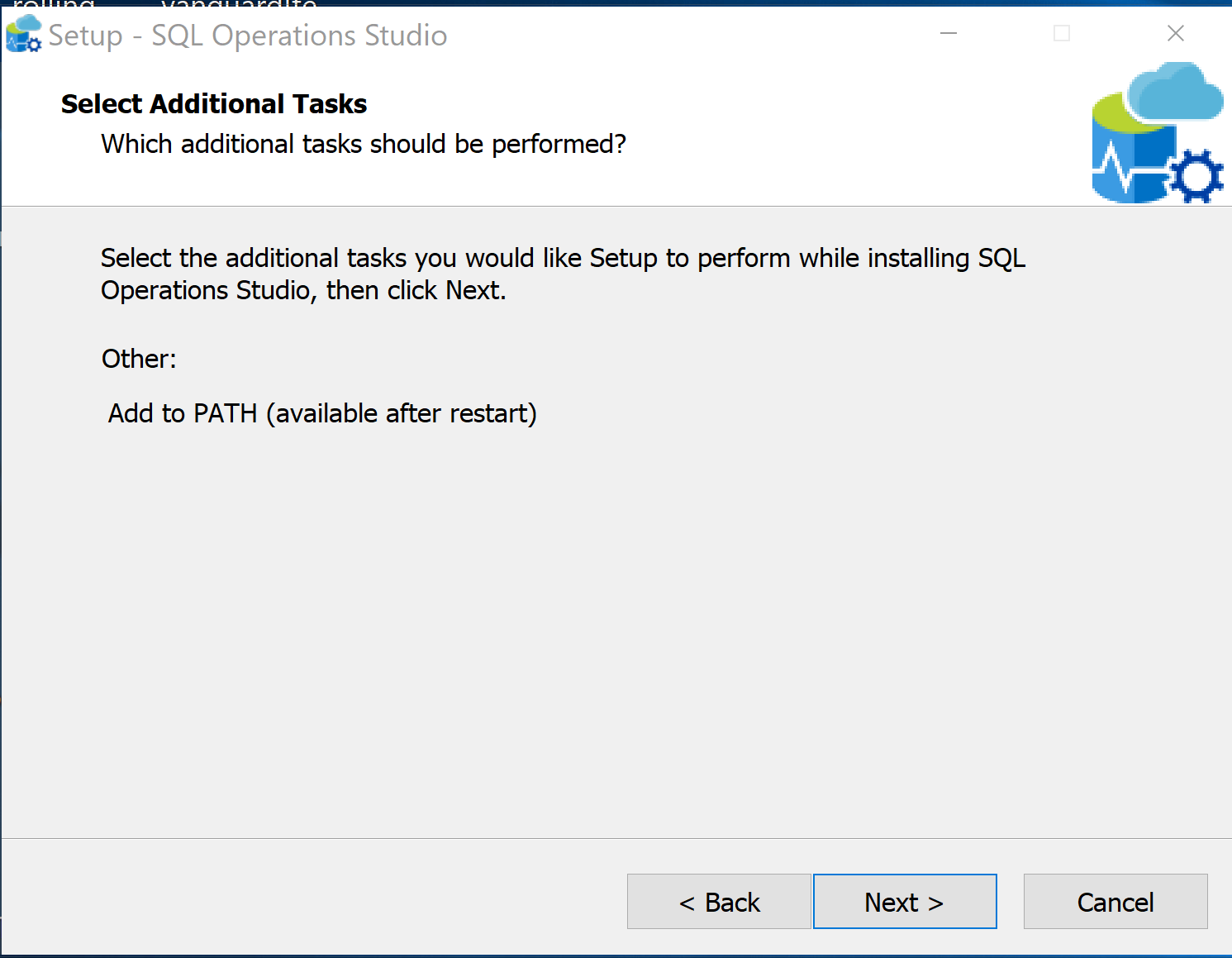
Install January Public Preview (ver 0.25.4) of Microsoft SQL Operations Studio

Screen shots taken while installing the January Public Preview (ver 0.25.4) of Microsoft SQL Operations Studio (MSFT SQLOPS) are included in this post. The details of this version are as shown:


SQLOPS_JANPreview.png

MSFT SQLOPS will be installed on a Windows 10 Professional on a Dell Laptop.


SQLOPS_JanPublicPreview9_Win.png

We will use the installer route to install. You start installing by double clicking the installer file you downloaded.


SQLOPS_JanPublicPreview2


SQLOPS_JanPublicPreview3

Accept license terms and click Next.


SQLOPS_JanPublicPreview4


SQLOPS_JanPublicPreview5


SQLOPS_JanPublicPreview6


SQLOPS_JanPublicPreview7

SQLOPS_JanPublicPreview8

It is installed and it is launched as shown


DMCA.com Protection Status