While looking for installing MariaDB, I came across a suggestion that installing XAMPP would be the best way to download and get MariaDB (as it is one of the programs on XAMPP)
.
MariaDB does lot more than MySQL and it is MySQL's challenger arising out of MySQL (MariaDB is MySQL's fork). MySQL in LAMP stack has been replaced by MariaDB. The download link for XAMPP with MariaDB is here. MariaDB is a truly open source with many advantages.
The download versions of XAMPP are v5.5.30 and v5.6.14 (both x32bit). These versions have the following components and they can be downloaded from here
 Xampp_Maria.png
These are all the programs in this download of XAMPP.
Updated PHP to 5.5.30 / 5.6.14
Updated Apache to 2.4.17
Updated MariaDB to 10.0.17
Updated phpMyAdmin to 4.5.0.2
After downloading double click xampp-win32-5.6.14-3-VC11-installer.
Bitnami shows up. Bitnami is very similar to Windows Platform Installer for Microsoft and some Open Source programs. Here are some screen shots of the installation.
 XAMPP_01.png
Click Next to select components to install.
 XAMPP_02.png
Choose the components you want installed. Since I had installed PHP recently, I chose to install only Apache and MySQL servers only. Clicking Next takes you to the next screen.
There was an advice not to install on C:\drive and so created a new drive J: for this installation.

XAMPP_03.png
After choosing installation folder click Next. The Bitnami set up for installing XAMPP gets displayed as shown.
 XAMPP_04.png
Click Next. The Ready to Install window is displayed together with the windows command program as shown. I am not sure why this comes up. I did not close the this window going forward.
 XAMPP_05.png
Click Next. The unpacking and installing processes begin as shown.
 XAMPP_06.png
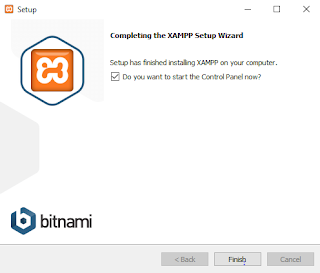
After a while Completing the XAMPP Setup Wizard is displayed.
 XAMPP_07.png
Click Finish. You are done installing XAMPP.
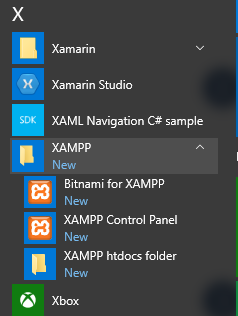
After this installation you get an app on your Windows 10 computer as as shown.
XAMPP_app.png
Click on the XAMPP Control Panel to bring up the control panel as shown.

XAMPP_Maria14.png
Although the XAMPP details in the beginning of this post indicated that MariaDB is packaged with this install it can be seen that it is still MySQL. Of course to run Apache needs some more configuring specially, as the port 80 is already used by IIS and or Skype. The other complication is that there was already an MySQL from a previous installtion from Oracle. After modifying these (essentially changing port assginments and removing previous version fo MySQL), I may be able to work these servers and see MariaDB.
.
MariaDB does lot more than MySQL and it is MySQL's challenger arising out of MySQL (MariaDB is MySQL's fork). MySQL in LAMP stack has been replaced by MariaDB. The download link for XAMPP with MariaDB is here. MariaDB is a truly open source with many advantages.
The download versions of XAMPP are v5.5.30 and v5.6.14 (both x32bit). These versions have the following components and they can be downloaded from here

These are all the programs in this download of XAMPP.
Updated PHP to 5.5.30 / 5.6.14
Updated Apache to 2.4.17
Updated MariaDB to 10.0.17
Updated phpMyAdmin to 4.5.0.2
After downloading double click xampp-win32-5.6.14-3-VC11-installer.
Bitnami shows up. Bitnami is very similar to Windows Platform Installer for Microsoft and some Open Source programs. Here are some screen shots of the installation.

Click Next to select components to install.

Choose the components you want installed. Since I had installed PHP recently, I chose to install only Apache and MySQL servers only. Clicking Next takes you to the next screen.
There was an advice not to install on C:\drive and so created a new drive J: for this installation.

XAMPP_03.png
After choosing installation folder click Next. The Bitnami set up for installing XAMPP gets displayed as shown.

Click Next. The Ready to Install window is displayed together with the windows command program as shown. I am not sure why this comes up. I did not close the this window going forward.

Click Next. The unpacking and installing processes begin as shown.

After a while Completing the XAMPP Setup Wizard is displayed.

Click Finish. You are done installing XAMPP.
After this installation you get an app on your Windows 10 computer as as shown.

XAMPP_app.png
Click on the XAMPP Control Panel to bring up the control panel as shown.

XAMPP_Maria14.png
Although the XAMPP details in the beginning of this post indicated that MariaDB is packaged with this install it can be seen that it is still MySQL. Of course to run Apache needs some more configuring specially, as the port 80 is already used by IIS and or Skype. The other complication is that there was already an MySQL from a previous installtion from Oracle. After modifying these (essentially changing port assginments and removing previous version fo MySQL), I may be able to work these servers and see MariaDB.


